Select Version of EA Desktop:
To create a new bin grid, click New in the workspace toolbar. The Create New Bin Grid window opens and displays three sections:
- The Bin Grid Properties provides fields for specifying the bin grid and navigation properties.
- The Calculation Results section populates the calculations according to your geometry related entries.
- The Geometry section is for you to manually enter or import the geometry points.
To define your bin grid:
-
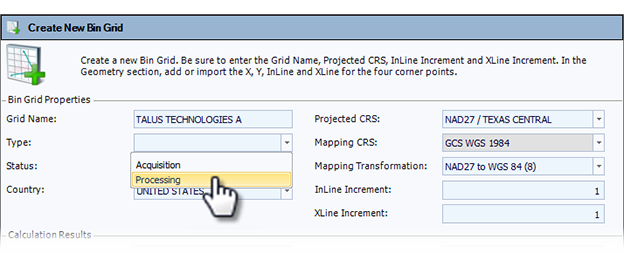
In the Bin Grid Properties section, enter a Grid Name.
Select the Type, Status and Country.
-
Select the Projected CRS and the Mapping Transformation.
Note:The Mapping CRS is defined by the map format and cannot be changed.
-
Enter values for your inline and crossline increments.
-
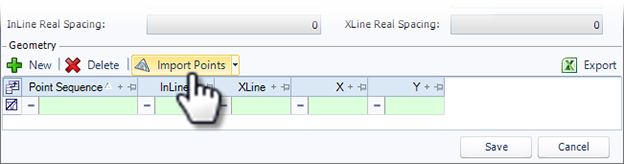
In the Geometry section, you can manually enter each point or import the points from Excel®.
-
To manually enter points, click New in the Geometry section and enter each value.
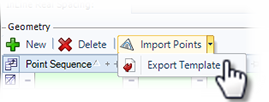
Tip:To reduce the chance of introducing errors when entering points manually, it may make more sense to enter the data into an Excel template with the correct format for importing points. Click the down arrow next to Import Points and select Export Template.
-
To import points from an Excel® file, click Import Points and navigate to the location of your Excel file.
- Select the file to import and click Open. The points import to the Geometry grid and a preview drawing of your bin grid displays.
- If permissible, click Save.
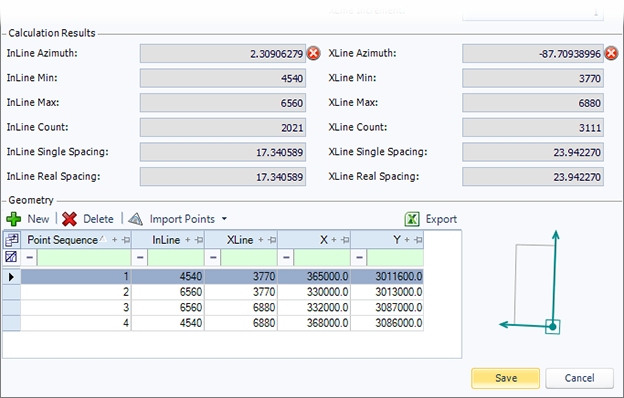
The Calculation Results section automatically updates and verifies the azimuth. A red x indicates that the azimuth calculation is beyond the allowable error threshold as set by your administrator.
You will not be able to save the bin grid unless you have security permission that allows you to ignore azimuth errors. To correct the error, edit the values in the grid or see your Geodesist.
To reduce the chance of introducing errors when entering points manually, it may make more sense to enter the data into an Excel template with the correct format for importing points. Click the down arrow next to Import Points and select Export Template.